
Dark Mode Toggle Switch
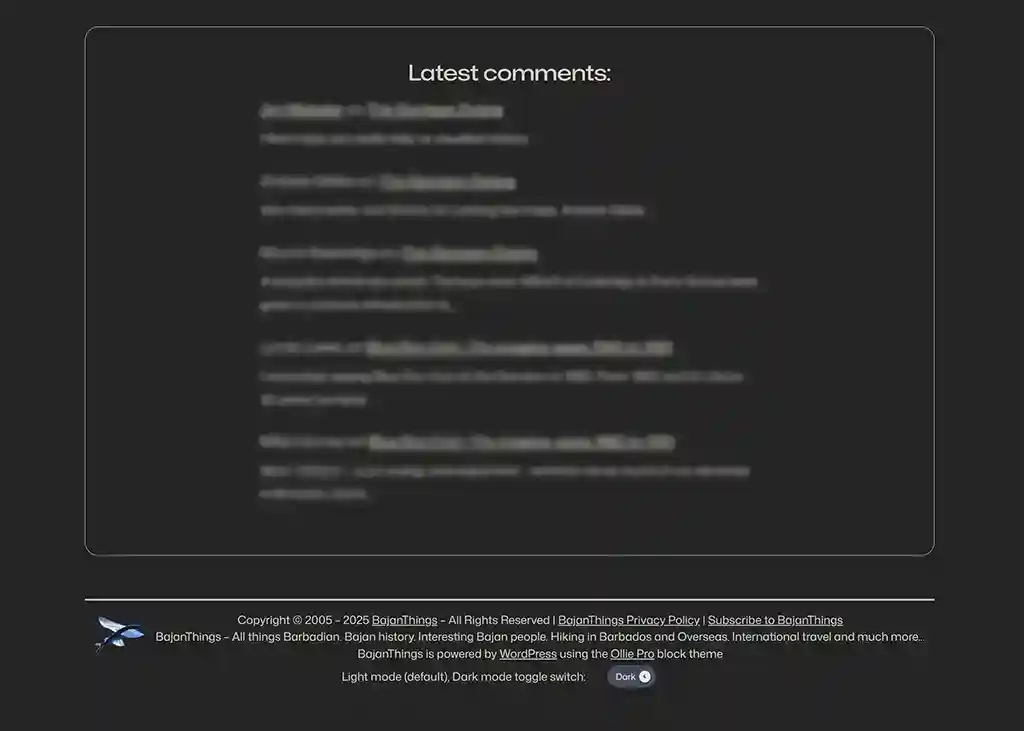
The default setup for the BajanThings website is Light mode. BajanThings have now implemented a Dark mode toggle switch in the header and footer.
You can try out the toggle switch below:
Light mode, Dark mode toggle switch:
One of our readers reached out with a request: Was there a way to force BajanThings into Dark mode? She explaining that her eyes had deteriorated and had become extremely sensitive to light and that she now relies on dark mode when browsing all websites.
The toggle switch in the header and footer does two things, it:
- detects if your browser is by default set to Dark mode and if so will automatically swap BajanThings into Dark mode and
- allows you to manually swap from the default Light mode into Dark mode. Simply click on the toggle switch to swap to Dark mode. To swap back to Light mode click on the switch again. It’s as simple as that.
Initially the Dark Mode magic was provided by the Dracula Dark Mode plugin by SoftLab. We have now swapped to WP Dark Mode By WPPOOL.
There was a clash with Dracula Dark Mode and Meow Lightbox. There was also clash with WP Dark Mode and Meow Lightbox but it was not as severe.
The issue was that Meow Lightbox displays individual images from a gallery on a dark background. With Dracula Dark Mode and WP Dark Mode where the dark Meow Lightbox background was made light, the white text and forward and backward navigation icons merged into the background and became invisible!
The good news is that this clash has been address and fixed by both Meow and by WP Dark Mode.
Search BajanThings:
Help Us Share More Bajan Stories – Make a Donation:
BajanThings is a passion project dedicated to preserving and sharing Bajan culture, stories, and history.
Your support helps cover the annual costs of running the BajanThings website and fuels our mission to document and share Bajan stories for future generations.
We accept donations via Stripe and PayPal.
Thank you for your support!
Subscribe to BajanThings:
If you would like to be kept informed when there are updates to BajanThings please subscribe to our e-mail update notification. Whenever there is new content added to BajanThings, you will receive an e-mail telling you of the update:
Contact BajanThings:
Click on the: Contact us button below to go to the BajanThings contact page: